How to use the Manual Portfolio Adder feature on the Musaffa App
Last updated Over 1 year ago
For investors who want to monitor their stock portfolio's Shariah compliance and performance anytime, anywhere, the Musaffa mobile app offers a powerful Manual Portfolio Adder. This feature is perfect if your brokerage doesn't sync automatically or if you prefer to input your holdings yourself. This step-by-step guide will show you exactly how to use it.
Step 1: Access the Portfolio Section
First, you'll need to log in to the app and navigate to the portfolio area.
Open the Musaffa app on your Android or iOS device.
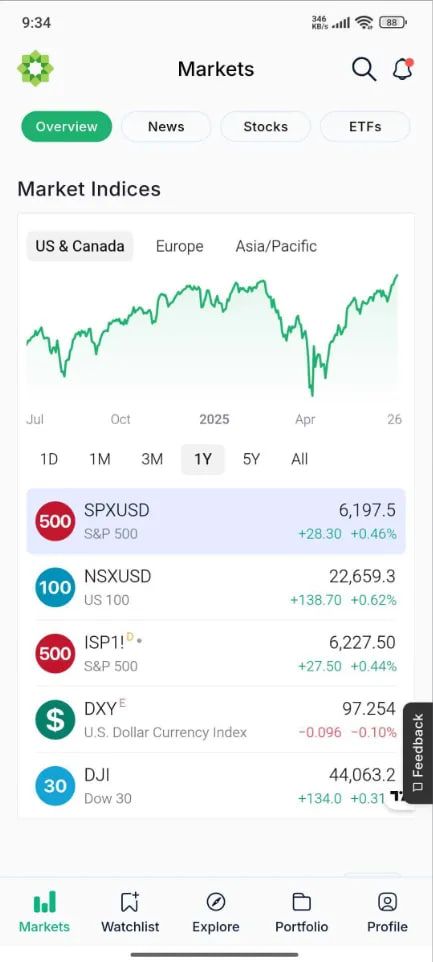
On the main dashboard (home screen), tap the "Portfolio" tab, located in the bottom navigation bar.
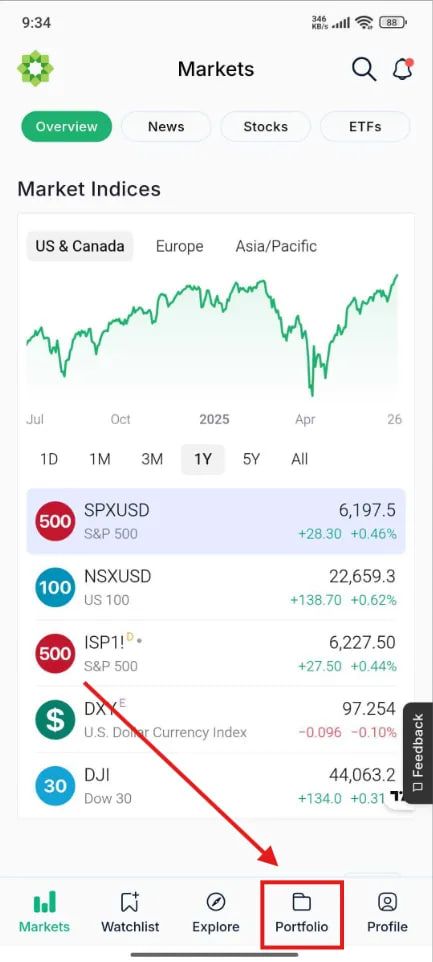
Step 2: Initiate the Manual Portfolio Creation
Once you're in the Portfolio section, you can start the process of creating a new manual portfolio.
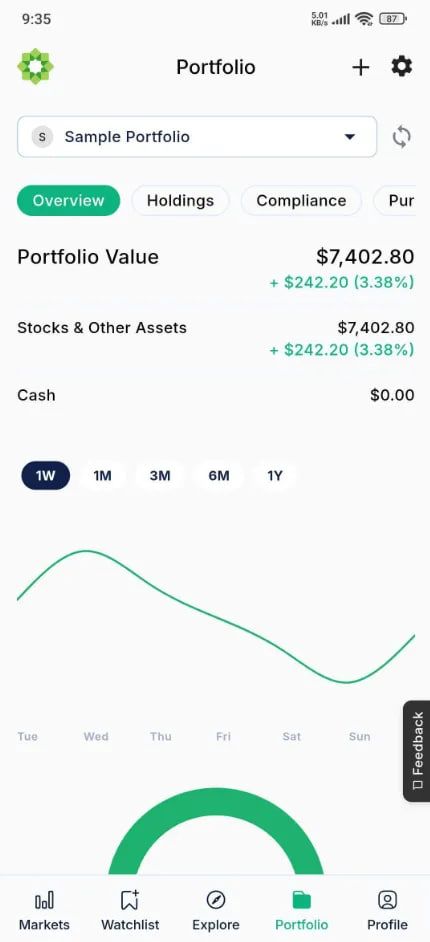
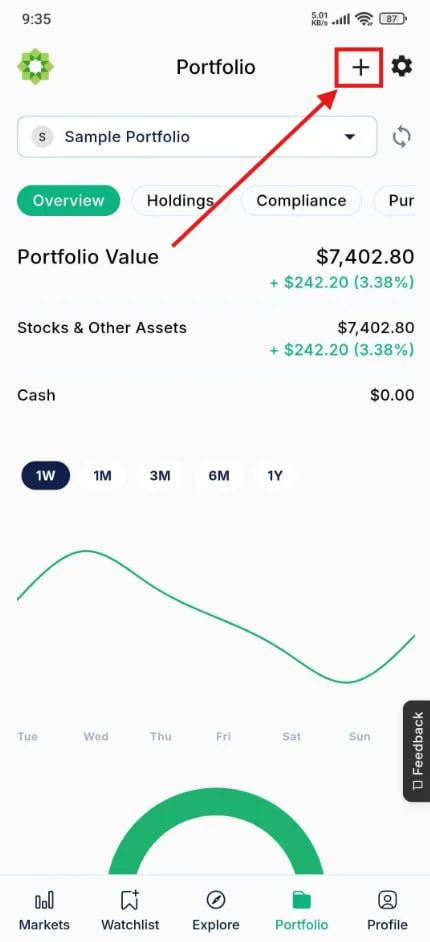
Look for a button labeled a plus (+) icon, located at the top right side of the screen. Tap on it.
The app will present you with options to either connect a brokerage or add a manual portfolio. Select “Add Portfolio Manually.”
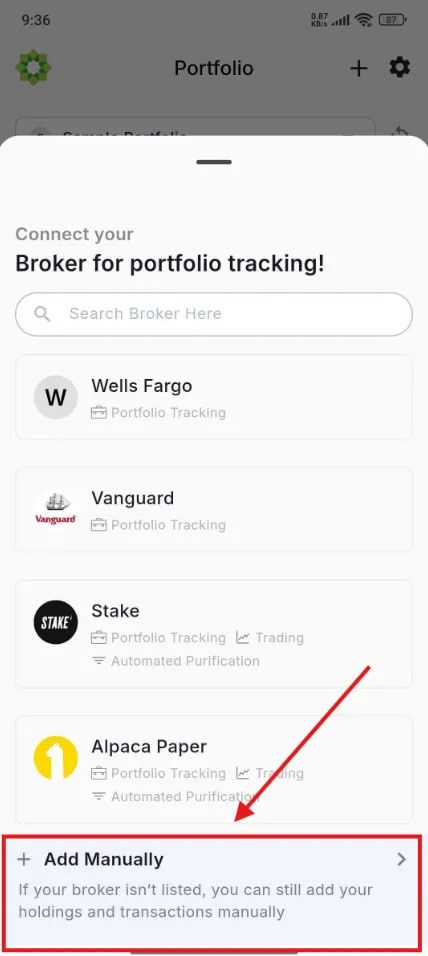
Step 3: Set Up Your New Portfolio
Before adding stocks, you need to define your portfolio's basic characteristics. After tapping on “Add Portfolio Manually”
A new screen will appear. Here, you'll need to:
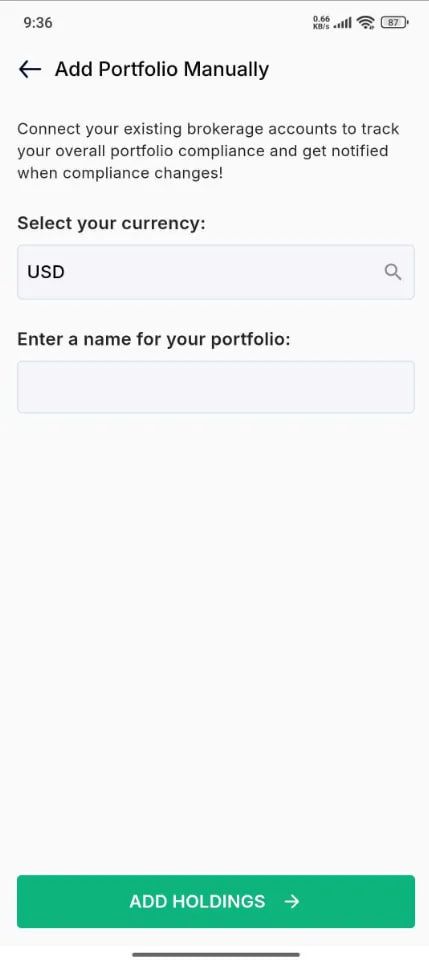
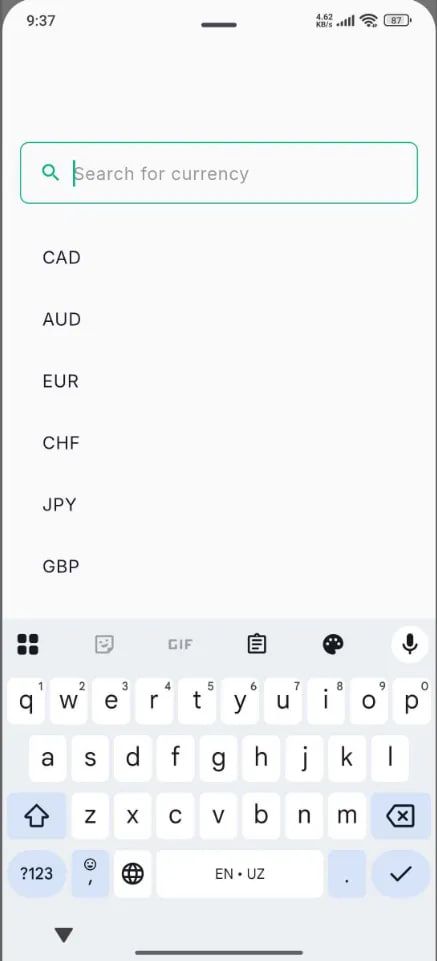
Select the currency: Tap the dropdown menu to choose the primary currency for your portfolio (e.g., USD, EUR, SAR).
Give your portfolio a name: Choose something easy to identify, like "Tech Stocks" or "My Portfolio."
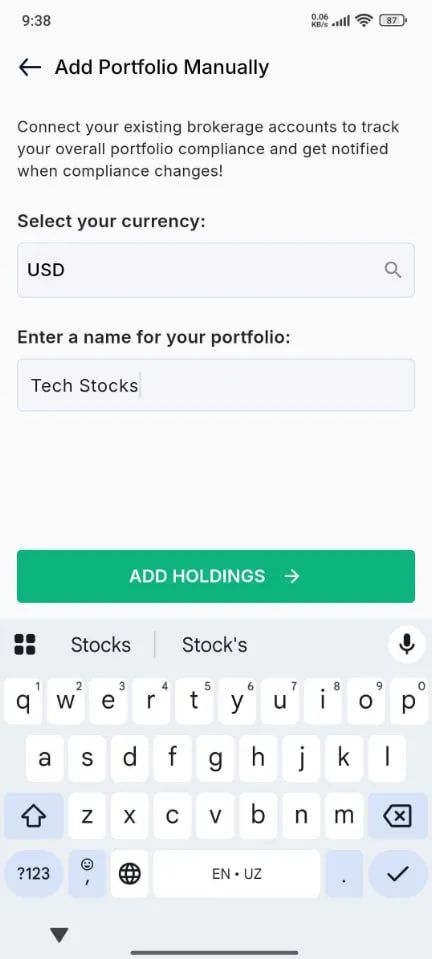
Then tap “Add Holdings” to proceed.
Step 4: Add Your Holdings and Transactions
This is the core step where you input your investment details. The app is designed to make this as seamless as possible.
Inside your newly created portfolio, tap on “Add Holdings”.
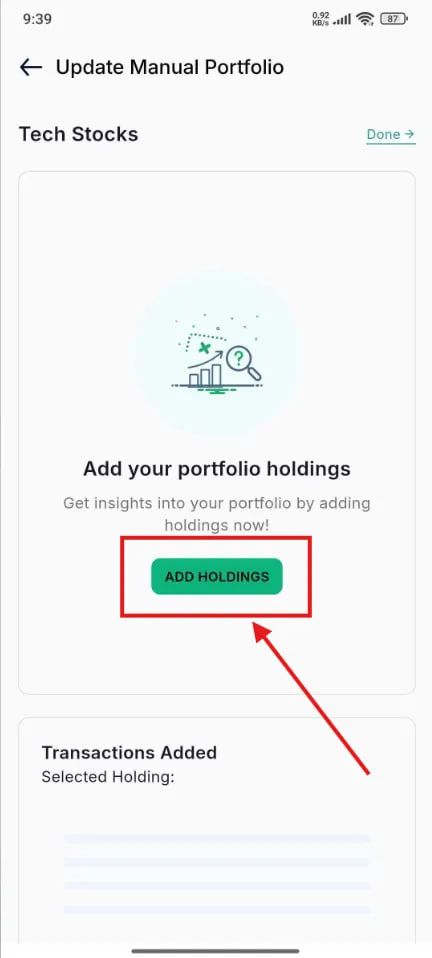
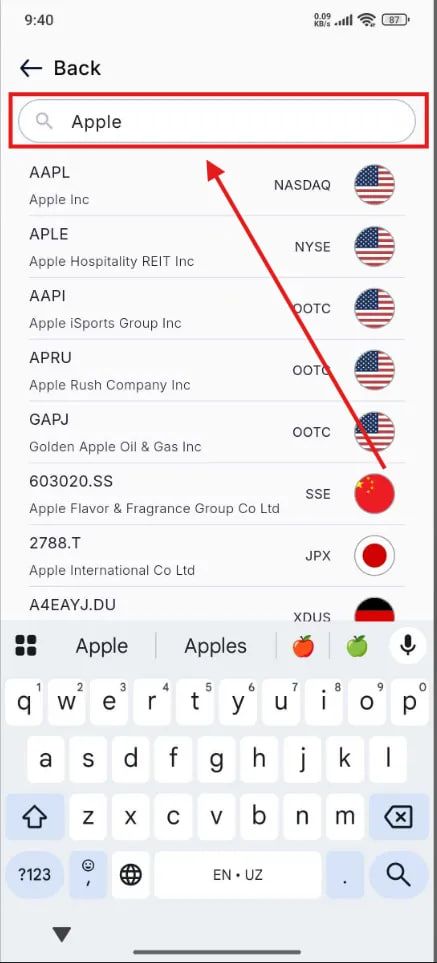
A search bar will appear. Type the stock ticker symbol or the company name (e.g., AAPL for Apple Inc.) and select the correct stock from the results.
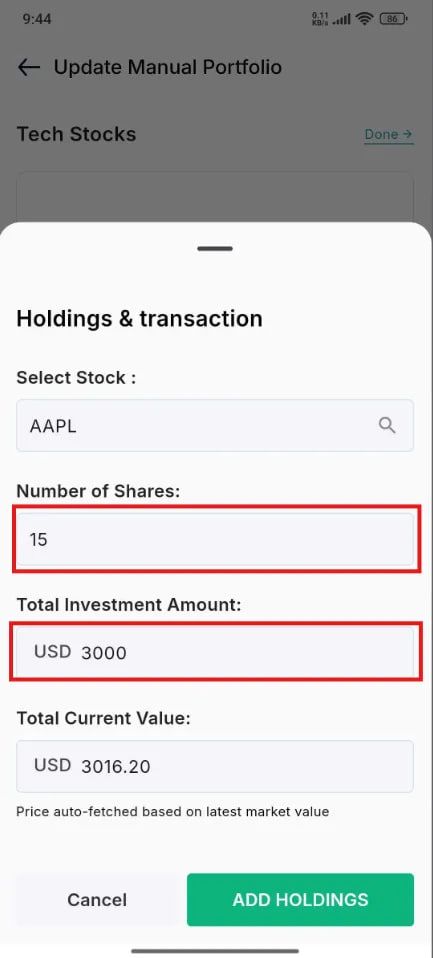
3. You will then be directed to enter the transaction details:
Number of Shares: Enter the quantity of shares you bought or sold.
Total Investment Amount: Enter the total investment amount when you bought the stocks, and then tap Add Holdings to complete adding your investment to the portfolio.
Add Transactions: For accurate performance tracking, you need to add the individual buy/sell transactions for each stock you hold.
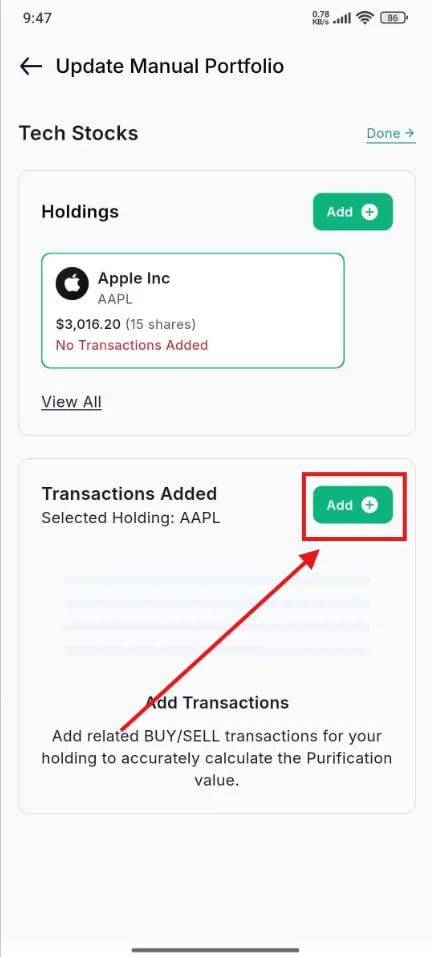
Transaction Type: Choose Buy or Sell.
Transaction Date: The date you made the trade.
Number of Shares: Enter the number of shares you bought or sold.
Order Value: Order value ****will be calculated automatically based on the share price on the transaction date.
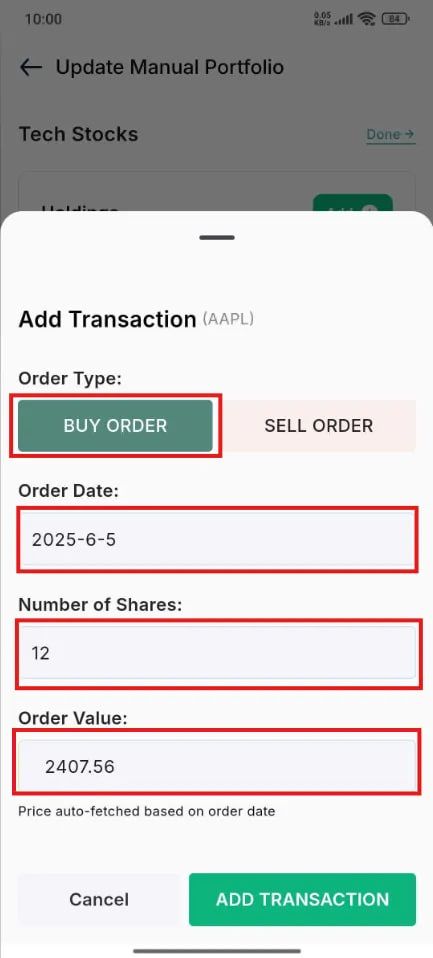
After filling in the details, tap “Add Transaction.”
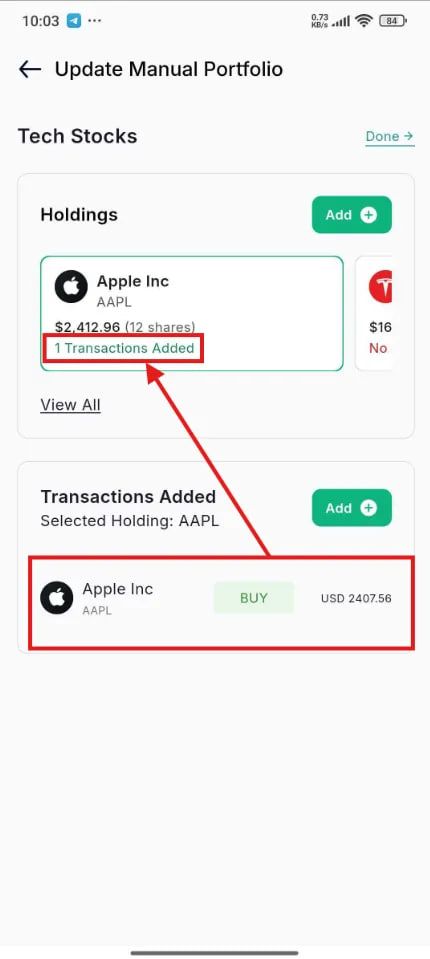
Repeat this process for every stock holding and transaction you wish to track.
Step 5: View and Analyze Your Portfolio
Once you have added all your holdings, your manual portfolio is complete and ready for analysis.
Return to the main view of your portfolio.
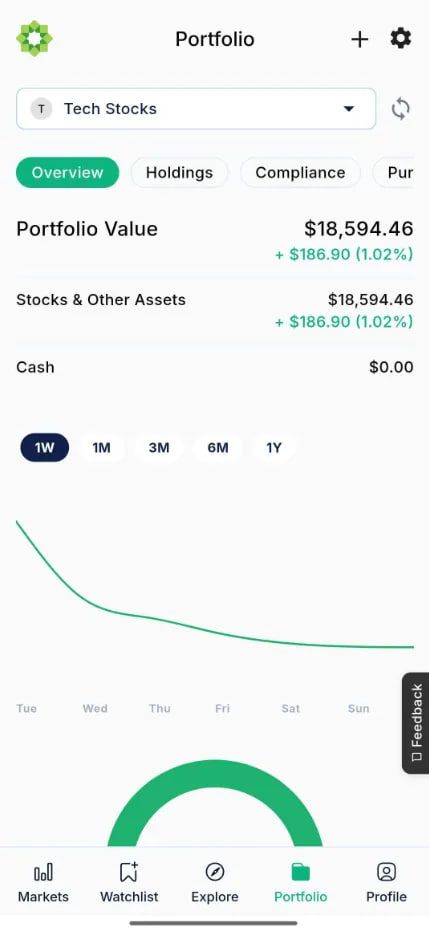
2. The app will now display an aggregated view of your investments, showing:
The overall Shariah compliance status of your portfolio.
The total current value and performance over time.
A calculation of the purification amount for any non-compliant income.
Detailed analytics on diversification and individual holdings.
With the Manual Portfolio Adder on the Musaffa app, you have a powerful tool at your fingertips to ensure your investments remain aligned with your values, no matter where you are.
Was this helpful?
Still need help? Ask the team