How to Delete Stocks from a Watchlist in Musaffa
Last updated About 1 year ago
Step 1: Access Your Watchlist
Click on the “Watchlist” tab from the side navigation menu (Web app) or from the bottom menu (mobile app).
You’ll see a list of all the watchlists in a drop down menu that you have created.
Step 2: Open the Watchlist
Select the specific watchlist from which you want to delete a stock.
The watchlist will display all the stocks it contains.
Step 3: Remove a Stock
Locate the stock you wish to delete.
In the mobile app, click and hold on the stock name and slide to the left and you will see the option to delete the stock.
Click on “Delete” and the stock will be deleted rom the watchlist.
To delete a stock from your watchlist in the Web app, click on the Star icon before the stock name (as in the screenshot below) and you will see a pop-up window asking you if you wish to delete the stock from the watchlist (refer to the 2nd screenshot below). Click on “Delete”.

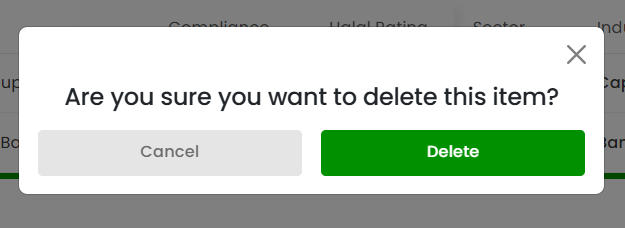
The stock will be removed from the watchlist immediately.
Was this helpful?
Still need help? Ask the team