How to use the Manual Portfolio Adder feature on the Musaffa Web Platform
Last updated Over 1 year ago
Tracking your investments is a crucial part of managing your portfolio. Musaffa's Manual Portfolio Adder allows you to input your stock holdings directly into the platform, even if you use a brokerage that doesn't sync automatically. This guide will walk you through the process step-by-step, ensuring you can easily monitor your investments for Shariah compliance and performance.
Step 1: Log in and Navigate to Your Portfolio
First, you'll need to access your Musaffa account and go to the portfolio section.
Visit the Musaffa website and log in to your account.
Once logged in, you will be on your main dashboard. Look for the "Portfolio" tab in the main navigation menu and click on one of your portfolios or the Sample Portfolio.

Step 2: Create a New Portfolio
If you don't have a portfolio set up yet, or if you want to create a new one specifically for manual entries, you will need to create one.
In the Portfolio section, click on the "Add Portfolio" or "Create New Portfolio" button.
You will be prompted to give your new portfolio a name and the currency of your portfolio. Choose a descriptive name, such as "My Manual Stocks" or "Long-Term Holdings," and click "Save & Continue."
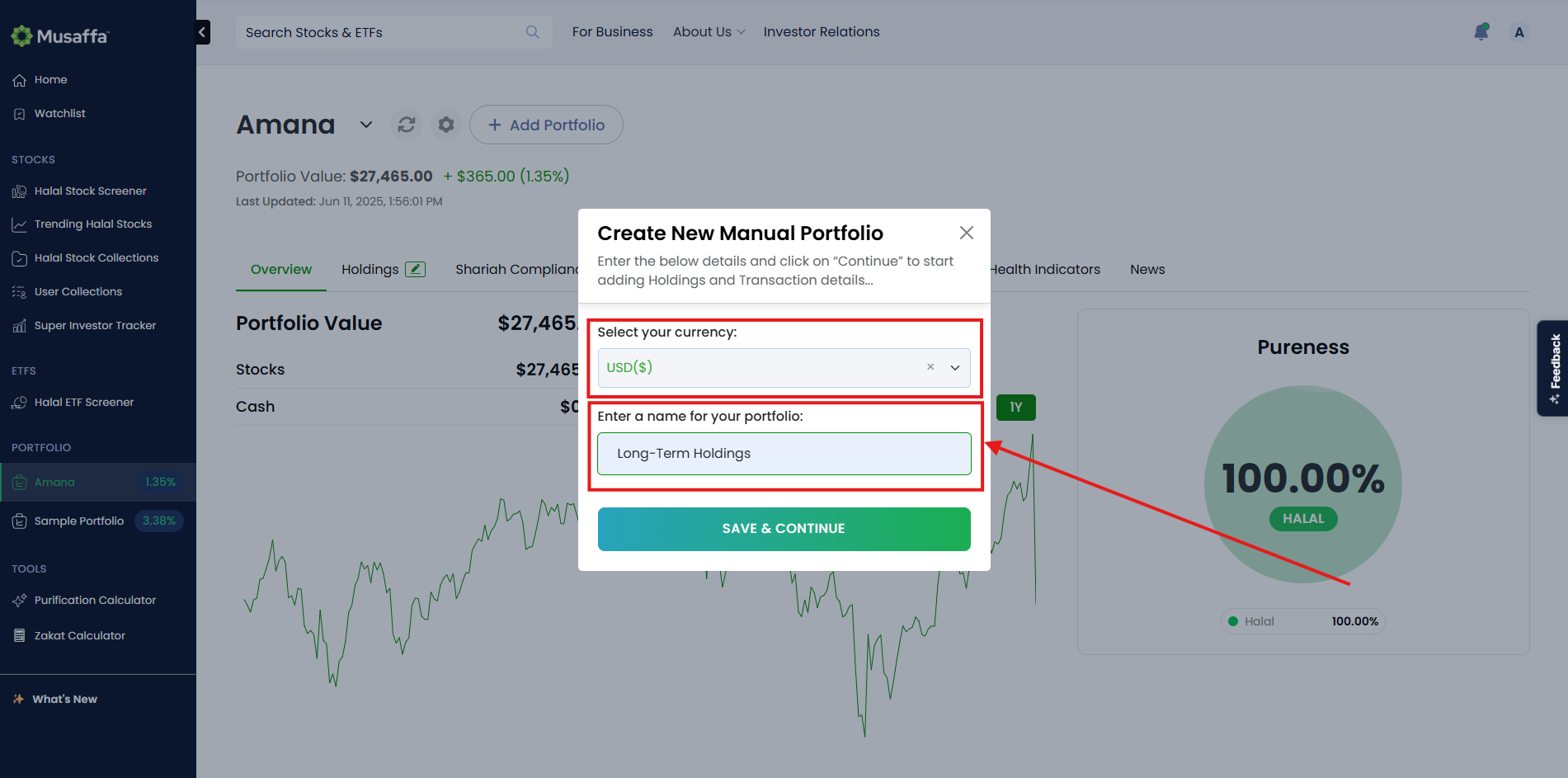
Step 3: Add Your Holdings
With your portfolio created, you can now begin adding your individual stock holdings.
Option A: Import Holdings via CSV File (Bulk Upload)
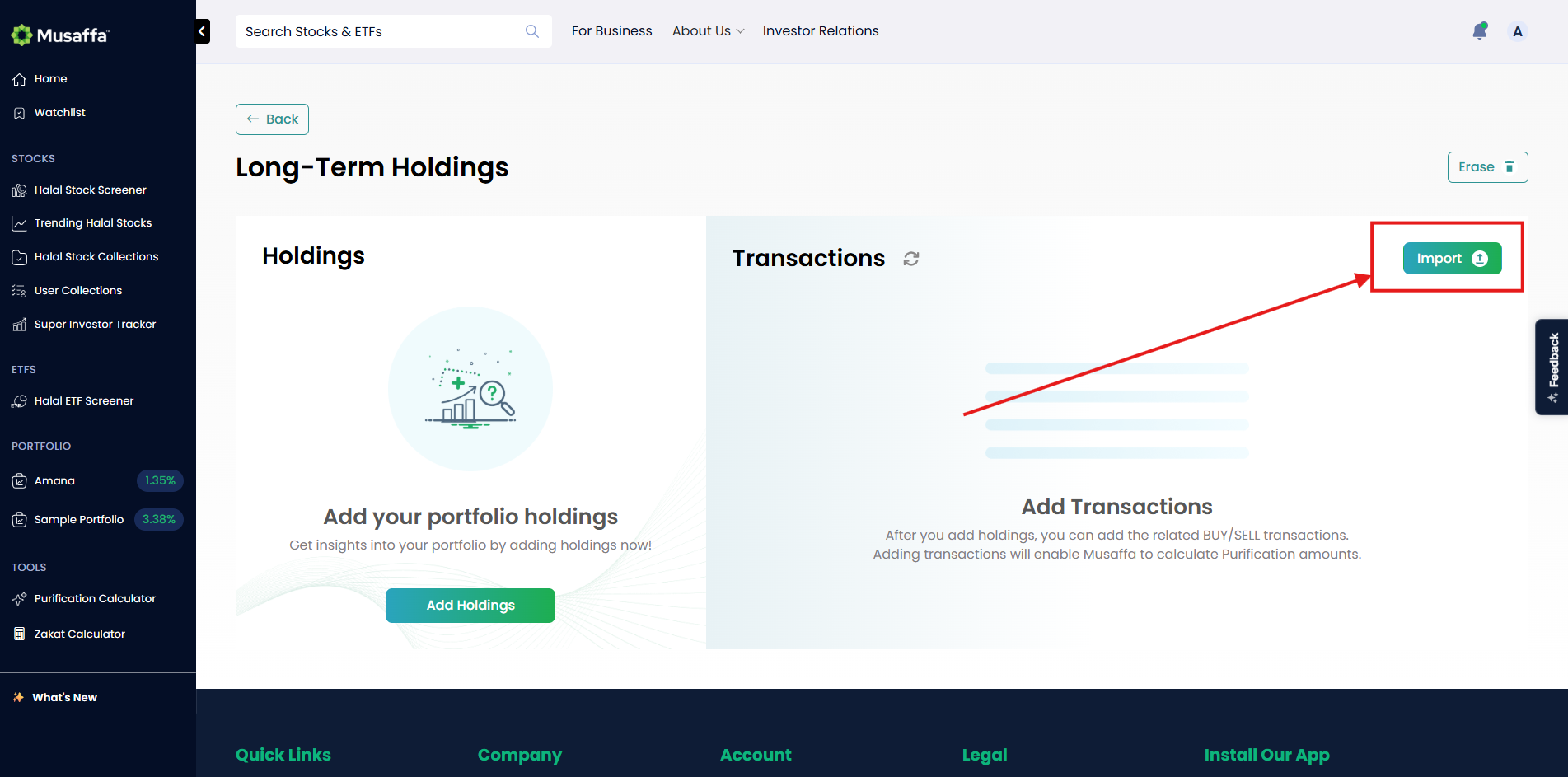
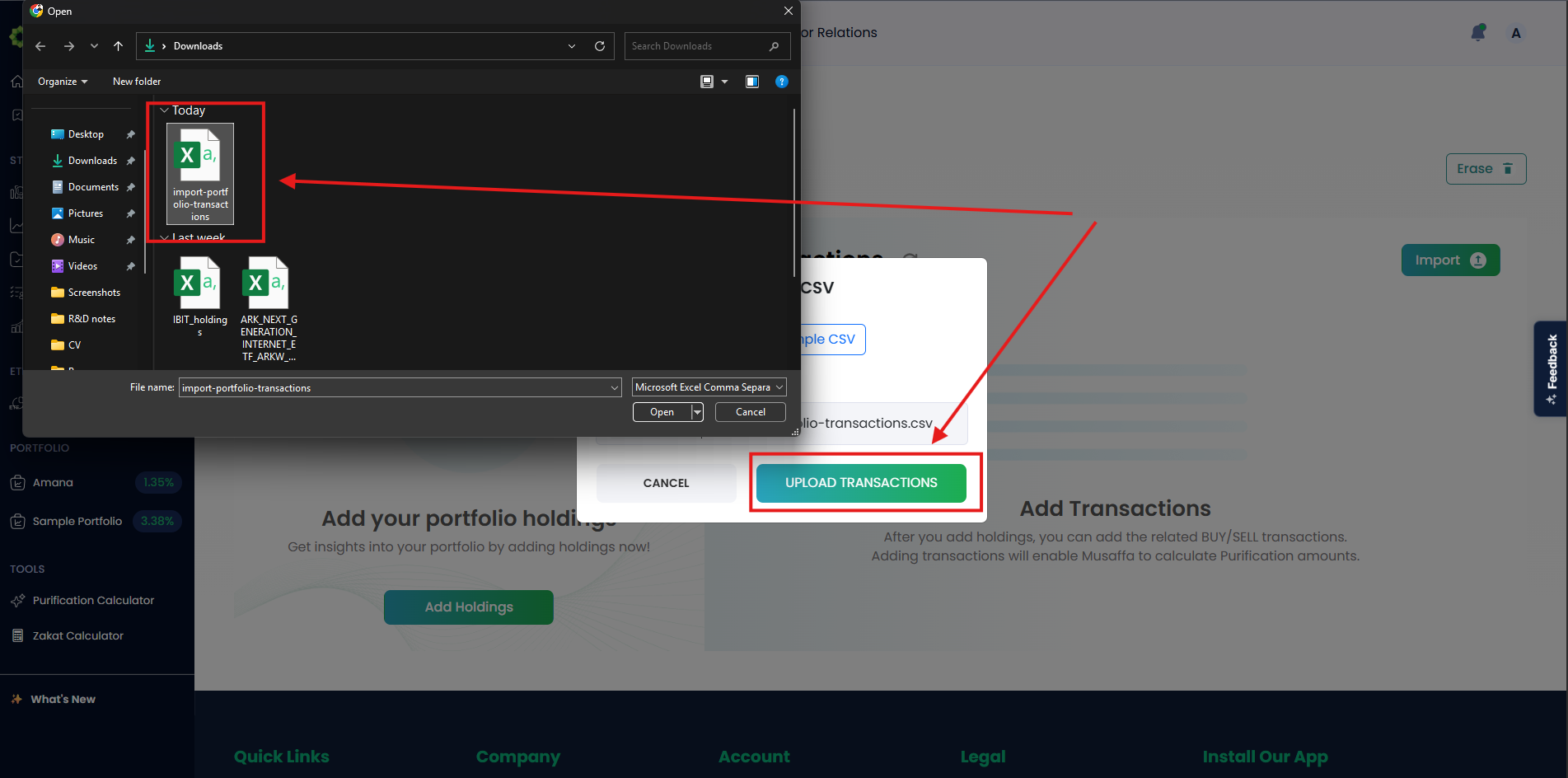
On the next page, click the ‘Import’ button to upload your holdings and transactions data.
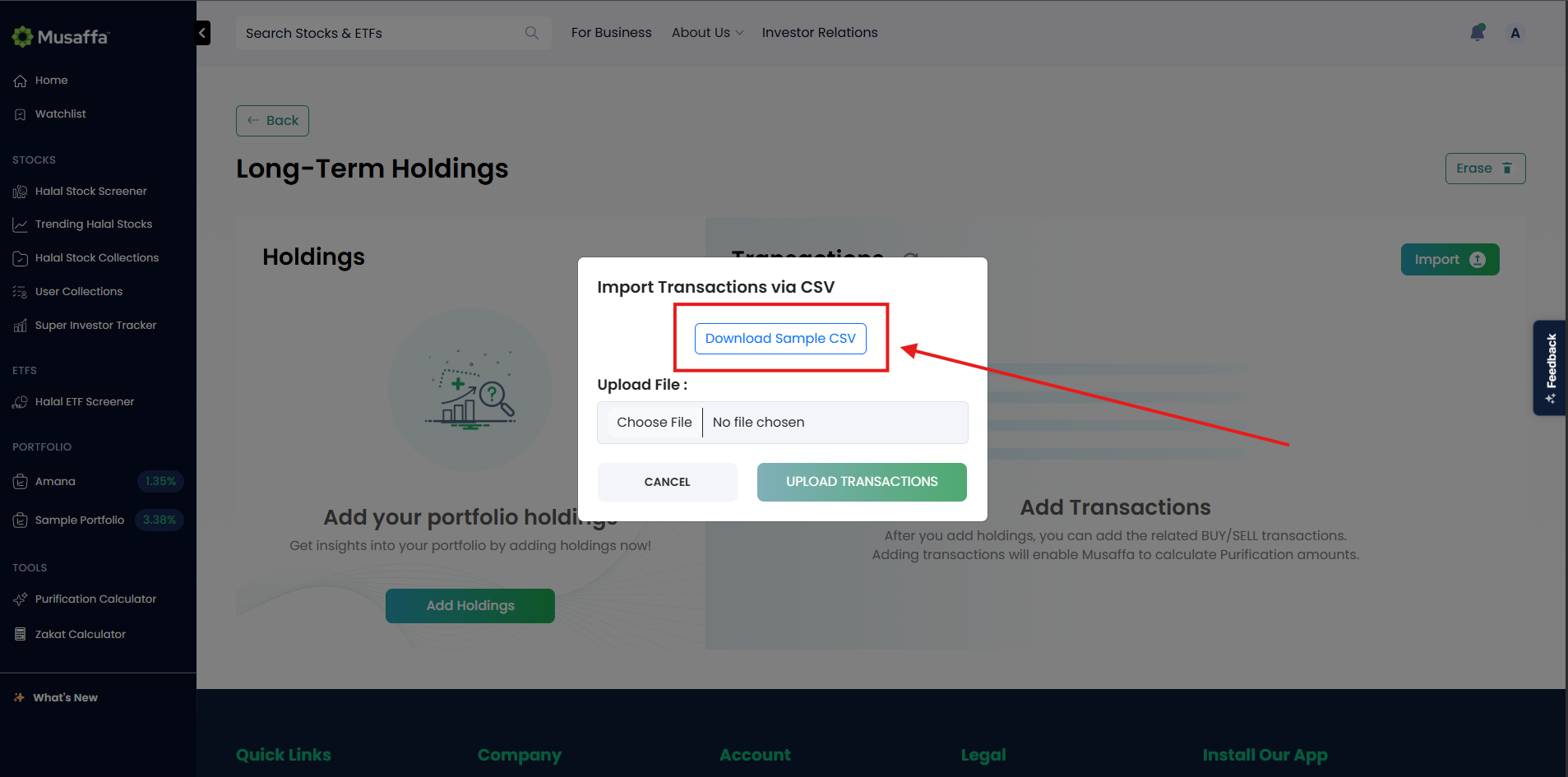
A pop-up will open. Click ‘Download the Sample CSV file’ to get the correct template.
Open the sample file and replace the placeholder data with your actual holdings and transactions information.
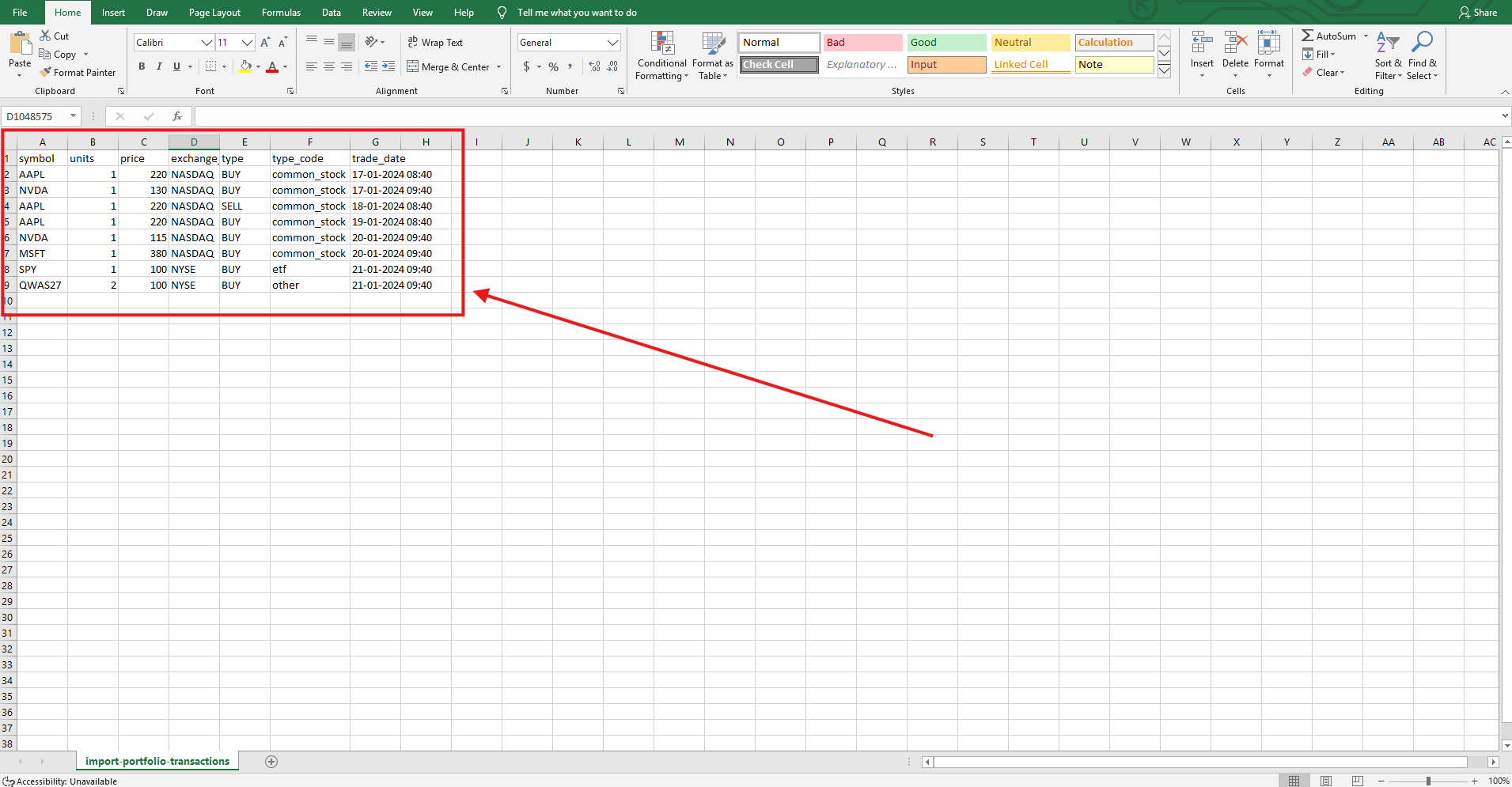
Save the file and upload it back to Musaffa.
Option B: Add Holdings Individually
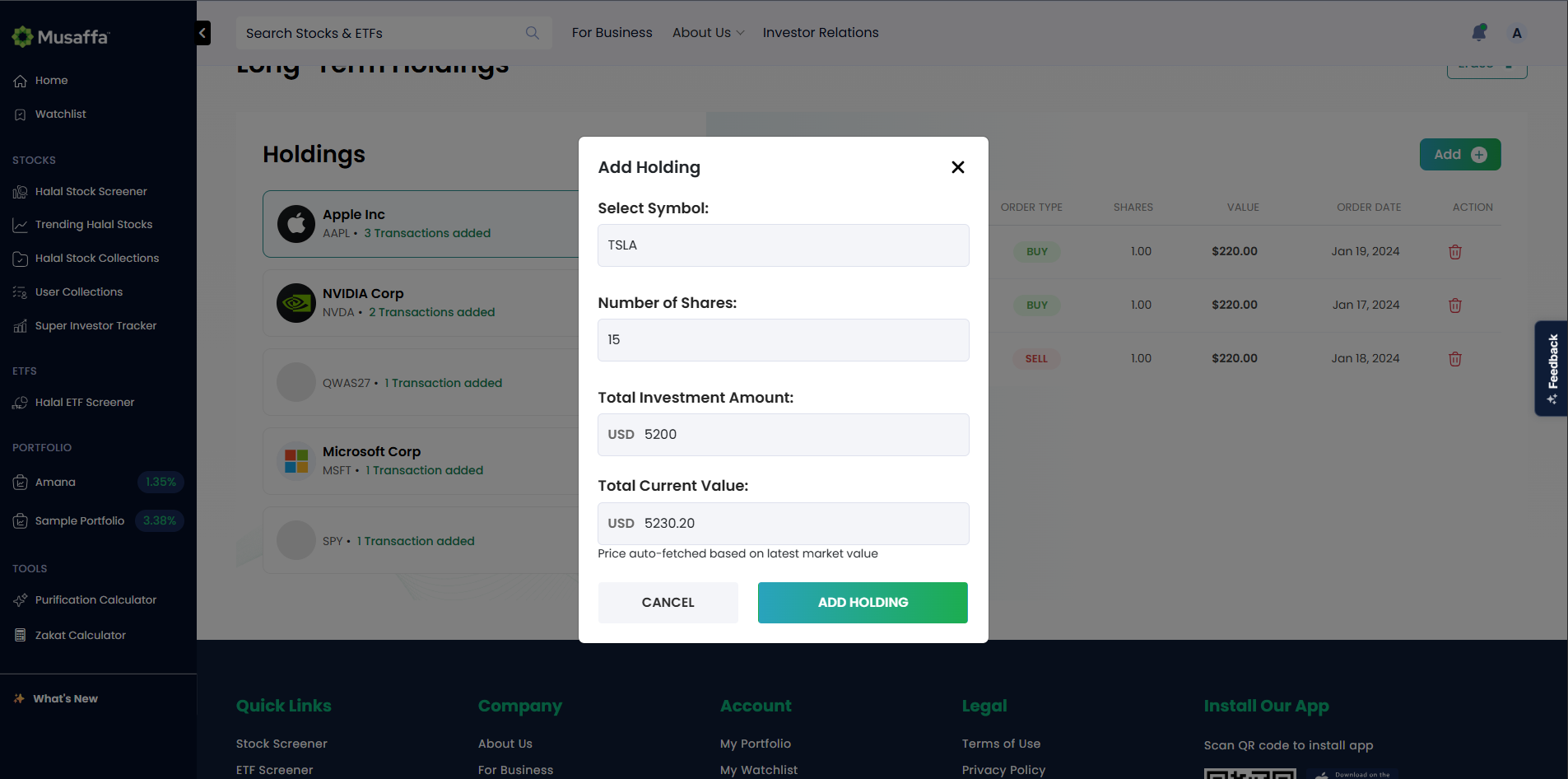
To add stocks one by one, click on ‘Add Holdings’.
A pop-up will appear asking for the following details:
Stock Symbol (e.g., TSLA for Tesla)
Number of Shares you own
Total Investment Amount
The system will automatically fetch the Total Current Value of the holding.
Click ‘ADD HOLDING’ to add the holding. Note: You can only add one holding at a time with this method.
Step 4: Add Transaction Details for Each Holding
For accurate performance tracking, you need to add the individual buy/sell transactions for each stock you hold.
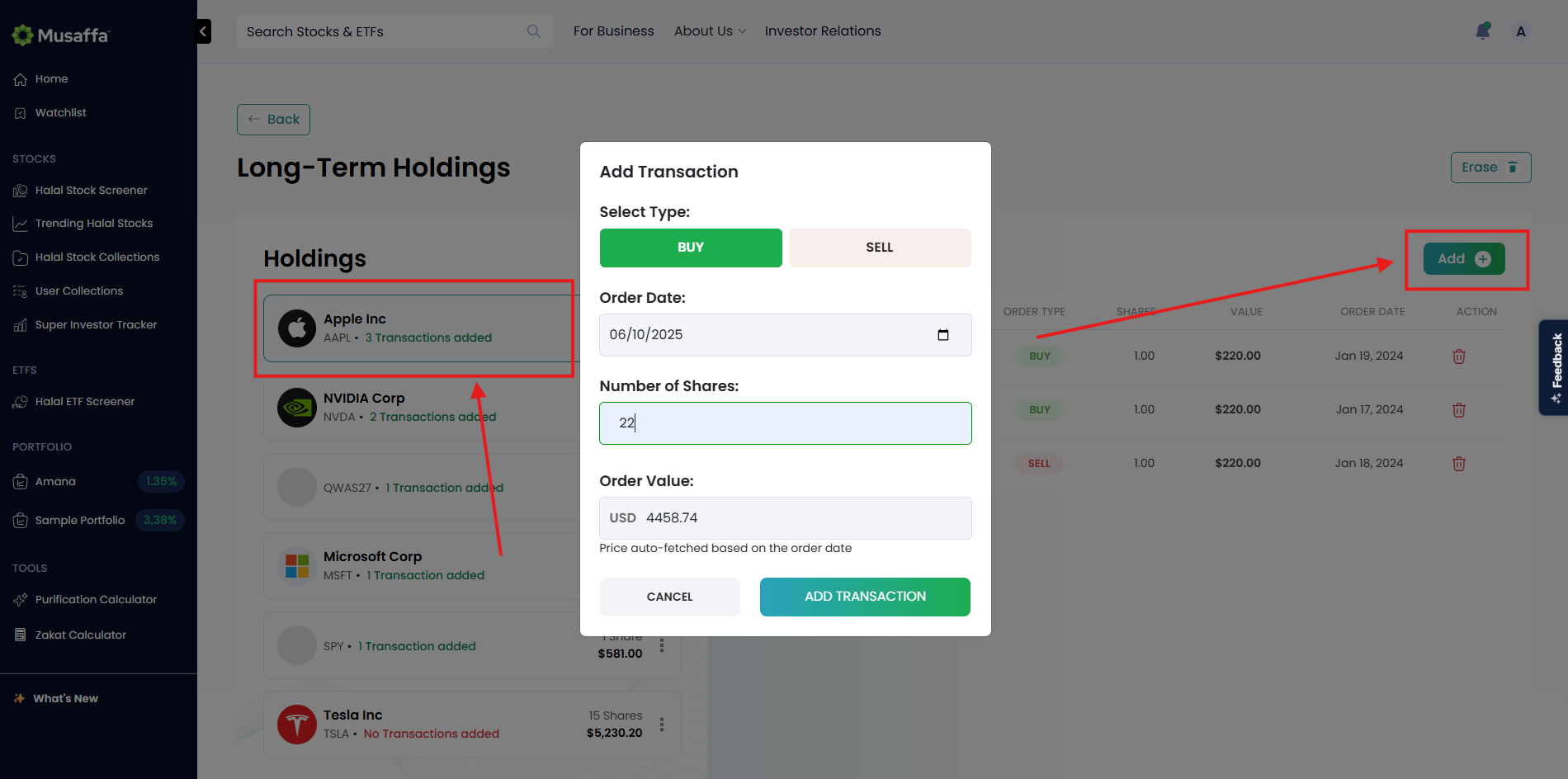
For each holding you've added, find the “Transactions” section on the right-hand side and click “Add”.
Fill in the transaction details in the pop-up:
Transaction Type: Choose Buy or Sell.
Transaction Date: The date you made the trade.
Number of Shares Bought/Sold.
The Order Value will be calculated automatically based on the share price on the transaction date.
Click ‘Add Transactions’ to add the transaction.
Step 5: Complete and View Your Portfolio
Repeat the process until all your holdings and their corresponding transactions have been added.
Step 6: Analyze Your Portfolio
With your portfolio now set up, you can take full advantage of Musaffa's analytical tools. You will be able to:
Check the overall Shariah compliance status of your portfolio.
View the calculated purification amount for any non-compliant income.
Monitor performance, diversification, and other key metrics.
By using the Manual Portfolio Adder, you gain a comprehensive and compliant view of your investments, empowering you to manage your wealth in line with your values.
Was this helpful?
Still need help? Ask the team